Step-by-step: install the extension, capture links without leaving the page, pick folders, and use tab controls for autoplay—then open the web app when you want the full workspace.
The QueueFy browser extension is a quick-save layer that sends videos and other media into your QueueFy folders while you stay on the source page. From the same browser tab, you can also manage autoplay and playback flow so your queue keeps moving the way you want.
Add the extension from the Chrome Web Store, pin it next to the address bar, then sign in with your QueueFy account so saves land in your real folders.
Step 1: Open the listing in the Chrome Web Store
Open the official listing in the Chrome Web Store. You can also search for QueueFy there if you prefer.
Click Add to Chrome (or equivalent) and confirm the prompts so the extension can interact with tabs you use to save media.
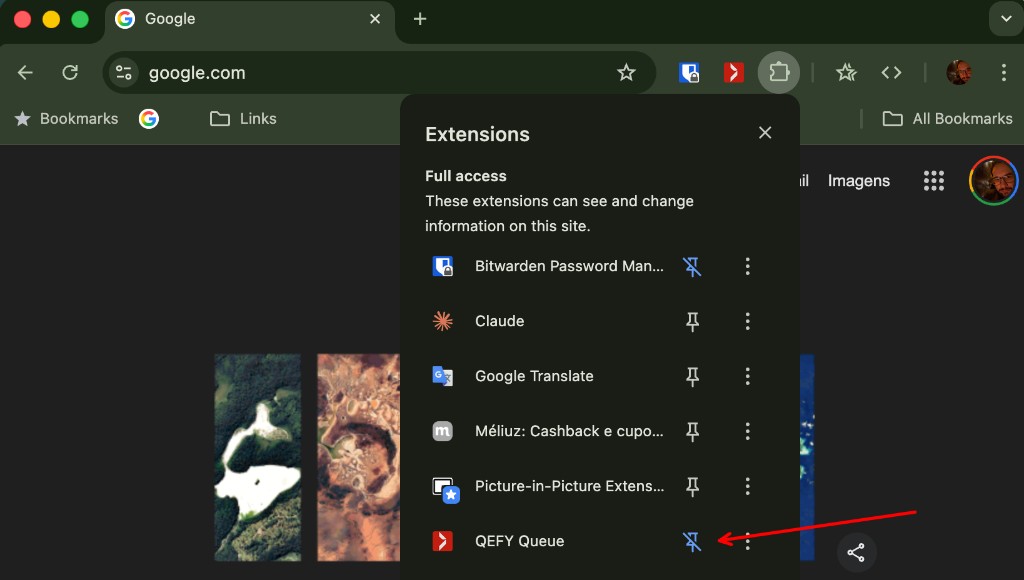
Step 3: Pin the QueueFy extension in Chrome
Click the puzzle-piece Extensions icon in the Chrome toolbar, find QueueFy in the list, then click the pin icon so QueueFy stays next to the address bar. That keeps quick-save and popup controls one click away.
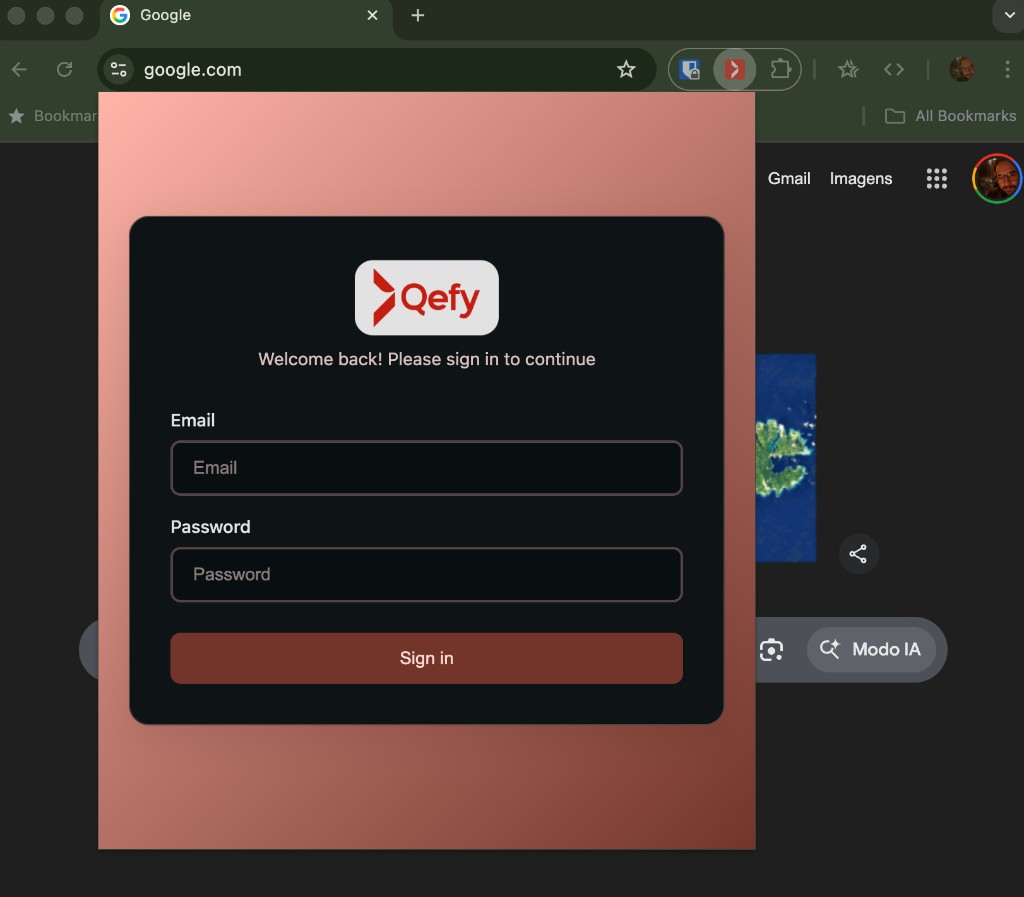
Step 4: Sign in to QueueFy from the extension
Click the QueueFy extension icon in the Chrome toolbar to open the popup, then sign in when prompted. Use the same account as https://open.qefy.app so your library stays in sync.
2. Quick-save from the page you are on
When you find a video or page you want in your queue, save it from the page—or open the extension popup, use the + button, and paste a URL.
Use the extension’s save action on the site you are viewing. Choose the folder that should receive the item—the default follows your recent or focused folder in QueueFy. Confirm the save and the link appears in your library with metadata filled in. You can also click the QueueFy icon in the toolbar to open the extension popup, press the + (add video) button, paste the URL, and add the item—useful when you already have a link or the page does not show the on-site save control.
3. Manage autoplay from the tab
Stay on the source tab and adjust how playback advances, so your queue and focus stay aligned. Extension controls in the tab let you steer autoplay and playback flow without jumping back to the full app for every tweak. When you need deeper organization, open the QueueFy web app for folders, queues, and settings.
For folders, default queues, and the full workspace, use the web app tutorial.